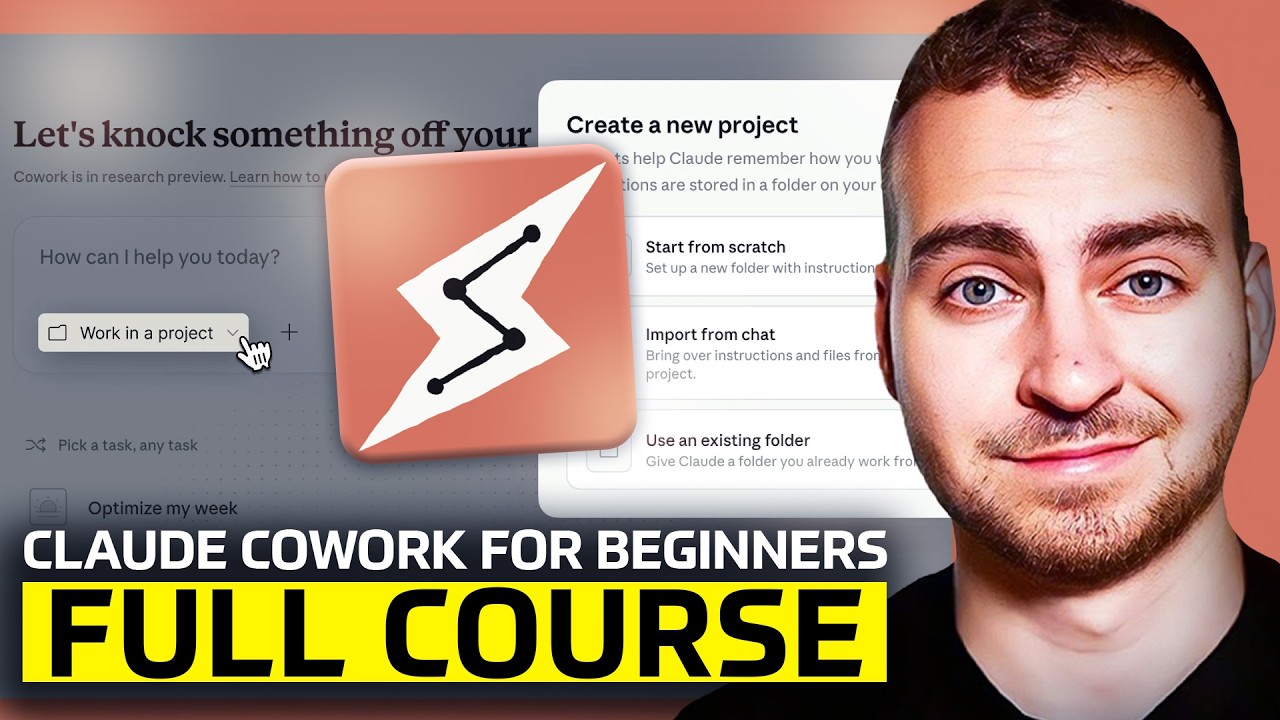
Claude Cowork - Full Course for Beginners
Now Playing
Claude Cowork - Full Course for Beginners
Transcript
466 segments
You've probably heard of Claude Cowork, but do you know what it is, how it works,
and how it compares to something like Claude Code or just the general Claude chat?
Well, if not, watch this video because I'm going to go over all of that
and I'm going to give you an in-depth guide and tutorial that covers everything
you need to know about Co-Work and how you can use it more effectively.
So with that said, let's dive in.
Okay, so I'm on my computer now and I've got Claude Cowork opened up.
And the first thing you need to understand is how to actually use this.
Well, in order for co-work to work, you need to download the Claude Desktop app onto your computer.
So go to the cloud website.
Simply download it.
It's available for Mac and for windows.
Now, in order to use cloud Co-Work, you do need to have a paid Claude subscription.
So either I believe the $20 per month one which is the pro plan,
or the 100 or $200 per month plan, which is the Claude Max plan.
In case you're curious, I'm using the Max plan right now in case
there's some features on here that I have that you don't have access to.
Now, as well as that, Claude Co-Work only works when your computer is on.
So while it is capable of running scheduled tasks and interacting with your files and doing
something like web browsing, your laptop or machine or wherever you're running it on has to be on.
The Claude desktop app has to be open, and that's how it's going to be able to execute.
So unlike something like Open Claw,
if you're running on a virtual private server, it's not going to automatically run in the background.
You would need to open it up and just leave the desktop application running.
Now, I believe the last thing to mention here is that you can actually use cloud Co-Work from mobile.
If you're on the Pro or the Max plan.
So if your computer is open and then you go on your phone,
you can trigger Claude Co-Work to do something so long as the machine is running.
And I believe that's done now through this dispatch feature that they added quite recently.
I believe it was a few days ago from the time that I'm filming this video.
Okay, so with that in mind, let's start talking about how to use code.
And you'll notice when you download the Claude Desktop app and sign into your account
and open it up that you'll have three tabs at the top here.
You'll have chat code and code again, if you're on one of those paid plans.
Now of course, in order to use Co-Work, you're going to press on the Co-Work tab.
And then you should be brought to a page that looks like this.
You also can create a new task by just pressing this button up here.
And on the left hand side
you'll see all kinds of thing like searching for different tasks, scheduled tasks, ideas,
customize where you can add skills, MXGp servers, things like that,
and you'll see various projects and all of the recent conversations that you're had.
Now to start using this, what you can do is select the model.
So in my case I'm with opus 4.6.
But typically if you want this to be cheaper then run with sonnet 4.6.
You don't rip through your usage extremely fast because this is worth noting.
The cloud co-work uses significantly more usage than something just like the default chat,
because it is doing a lot more operations and interacting with your machine.
You also can select a folder to work in, and I'm going to talk in depth about how that works
because the permission system behind cloud
co-work is a little bit confusing, and I really want to demystify that for you.
Anyways, if we wanted to ask this to do something really basic,
you can see that on my desktop it's a little bit messy, right?
We have a bunch of different folders.
So one of the capabilities of cloud co-work is that it can actually interact with your computer.
And it can, for example, browse the web.
It can organize your file system.
It can go in, find something for you, and it can use your physical computer.
And that's the main differentiator between something like chat or in chat.
It doesn't have access to your whole file system, right?
It can't go through and reorganize your downloads.
It can't directly access your browser unless you give it access to that explicitly.
And it's a lot more limited, where typically what it's going to be doing is giving you a chat
based response, maybe generating something for you, or interacting with the tools that you connect it to.
Co-Work has a lot of features that make it more useful,
because it can actually interact with the machine, and it can kind of take control of
almost like your keyboard and mouse and do something as if it was you on your home computer.
Again, there's some granularity there which we'll get into
and then code, because I think it's important to understand the difference.
To be honest, can pretty much do everything the cloud coworking do.
The real difference between co-work and code is who it's designed to be used by.
Co-Work is really designed for those of you that are a little bit more beginner,
that aren't familiar with kind of development tools and working in the command line,
and it's meant to be an easier kind of transition into using this like powerful tool.
Whereas cloud code, because typically you are going to run it
in the command line, while also you can run it in the UI.
Here is a little bit more for advanced users or power users,
but to be honest, they can pretty much do the exact same thing.
Think of it if I'm going to ask Co-Work to reorganize my files,
the way it's going to do that is by running commands.
Code can already do that and has already been able to do that
for a long time, but it's just been a little bit more intimidating for other people.
A few other differences.
The cloud co-work will actually automatically create a virtual machine for you where it will run
certain operations, and it just has some kind of default config and set up the code doesn't have.
So ultimately they are pretty similar.
But anyways, let me get into exactly how this works.
So for now, just to demonstrate the basic capabilities of this,
what I'm going to do is select a project that I want cloud co-work to have access to.
So what I'm going to do is I'm just going to select my desktop here, and I'm just going to go with allow.
Now notice that prompt right there.
Because Co-Work will only be able to touch something on your computer that you give it direct access to.
So now because I've given it access to my desktop folder, anything in my desktop or any nested folders
within that cloud, Co-Work can modify, move, touch, you know, delete all of that kind of stuff.
So be super careful when you use this because you cannot just reverse anything that it did.
So now that we're on my desktop, though, we can run a simple task.
Hey coworker, can you please reorganize my desktop and just color code the folders
and make it a little bit cleaner and easier for me to read and find the information?
Okay, so we're going to go ahead here and just press enter and just see what it's capable of doing.
And while it's doing that we can quickly run through the other features you'll see here.
Notice that you get kind of a progress bar at the top where it shows you what it's running through.
In this case, it hasn't created like a long plan yet because it's still analyzing what I have.
You also get the project you're working inside of, which is my desktop, as well as any instructions.
In this case, I haven't specified any.
And then you'll have the context that it's using.
So if you're adding other files or tools or connectors you'll see them here.
So let's wait for this to finish and then I'll be right back.
And as I mentioned you can change the model down here if you want.
Opus is going to use a lot of credits.
So keep that in mind now while we wait for Co-Work to finish here.
This is a great time to tell you about today's sponsor Storyblocks and what I'm producing.
Videos for this channel.
The last thing that I want to be doing is jumping between five different sites
hunting for B-roll, background music, sound effects, etc..
Storyblocks just fixes that.
It's an all in one creative tool kit with footage, music, sound effects, templates
all in one place, and they actually save members an average of 3.5 hours a week.
And honestly, that tracks for myself and my team.
And what I also want to be clear about, and I think this matters, is that the is 100% human made.
So real filmmakers, real artists from around the world.
This is not some random AI generated footage platform.
The footage is professionally shot and produced, which is why it actually looks good in videos
and doesn't feel generic.
Now, on top of that, they do have AI powered tools built in to speed up your workflow.
So I video editing powered by runway and AI voice over powered by 11 labs.
But those are just tools that work on top of the real footage.
They're not replacements, so you stay in full control of the creator.
Now, they've also got thousands of templates for Premiere Pro, After Effects, and DaVinci resolve,
which are easy to drop in and easy to customize to start telling better stories
with the tools that I use, head to Storyblocks dot Comtech with Tim and they're offering 15% off
any annual plan for a limited time, and that discount is only available through my link below.
Thanks to Storyblocks.
Now let's get back into it.
Okay, so now what cloud is doing is it's just asking me what I want to do with
some of the folders that I've got here.
So I'm just going to say leave them where they are.
It says the color coding. Let's go by category type.
And now that I've answered those questions it should continue and complete the rest.
Okay so this is finished. So let's go to the desktop and see.
And I mean that looks pretty good.
It doesn't look like it really organized a lot of the files that I have.
But at least they color coded them, which is kind of better than what I had before.
And well, you know, we're off to a good start using cloud co-work.
Okay.
So let's continue now and let's have a look
at some more advanced things that we can do and understand how Co-Work actually operates.
Now, the first thing that you need to understand
is that the Co-Work sessions that you have are independent.
And Claude doesn't automatically remember them.
What that means
is that if I were to create a new task here and I said, you know, what did I just ask you to do?
And I didn't work inside of the desktop again.
So let's just like, remove that and just go.
What did I ask you to do?
You'll see that if I hit enter here, it's probably not going to know.
So let's give it a second here to give us a response.
And you can see that this is the start of our conversation.
And it doesn't know what we were doing in the other sessions.
So this is different than when you're using the chat window where it can actually pull context
from other sessions and automatically remembers things about you.
Now, the reason I'm mentioning this is that you can fix that problem by working inside of a project.
So if you know that you're not just doing a one off task in that you're going to want to do something
multiple times,
or you want Claude to remember some specific tasks about the thing that you're asking it to do.
Then what you're going to want to do is create a new project
so you can press the plus button here where it says projects.
Or if you go back to new task, you can go here and you can make a new projects.
You see, I have one called Hello World, but let's make a new one and just go
start from scratch and let's just go main or something okay.
And we'll go ahead and press on create.
So now that I'm inside of this project, you'll notice that we actually have a memory
that appears in the right hand side as an additional view, an additional tab.
So now as we start chatting with Claude, even if the conversation gets really large,
it's still going to remember what we were asking it to do previously.
So we have all of the context in one session.
This is probably the number one thing you can do to make sure you get a better result.
Just work inside of a project.
So from here, inside of the project, same thing.
We can start interacting with Claude.
But where this gets super useful is when we start giving it the ability to actually use our browser.
So if we go down to the settings here, which we'll be able to access by
clicking on our avatar, we can go to settings.
So from settings here, if we click into this there's a few things that we want to look at.
Now first if we go to the Co-Work settings here we can enable dispatch.
This is how you can use it from your phone.
So if you go on mobile and you're just on the Claude desktop app on mobile,
you can press dispatch and you can dispatch a task to your computer.
So we can start running.
You also can enable global instructions.
And these are things that you want to follow an all co-work session.
So for example, if you wanted to use, you know, Microsoft Edge
instead of using Chrome, you could tell it that and then it would do that by default.
Or actually that probably doesn't make sense because I think it connects
to a Chrome browser extension, which we'll look at in a second.
But if you have some preference, you can put it here and then you can delete co-work sessions as well.
Okay.
Now next thing that we want to look at is Claude in Chrome.
Now this is where it gets really powerful because Co-Work can automatically actually start
on managing your browser and doing things inside of there.
Now, in order for this to work, you need to install the Claude Chrome extension.
So if you just go Claude, it probably will show you in the desktop app.
But if you go Claude Chrome extension,
if I could type properly, you're going to see we have Claude for Chrome here.
Let's give this a second to load.
And then what we can do is go add to Chrome. Okay.
And if we add that to Chrome, we can install the extension.
I have it installed right now.
Now once it's installed what you can do is just select it.
So if you go to the extensions and press on Claude, you can start asking it to do something.
And it will just directly do that inside of your browser.
But you don't have to actually tell it to do something from there.
As long as you have it enabled and you have that extension configured,
you should be able to like pair it from here in Co-Work.
And then if you go back to one of your tasks, you can say something like, open up my browser,
go to YouTube and tell me two of the recommended videos on my home screen.
And now if we do that, we can go ahead here.
We can go to connectors, make sure that Claude in Chrome is enabled by default.
It should be in.
If I press enter here it should start going and doing that.
So I'm just going to open up my browser just so we can kind of watch it work.
And let's see if it opens up YouTube and starts triggering that okay.
So you can see that actually just opened another tab here.
Let me open this up.
And you can kind of hide or view what it's doing.
So you can see that it's opened up YouTube here.
And now there's a few videos on my screen. Okay.
And let's wait a second and see if we get the result.
And we get it right away.
And it says I stayed in the worst room at luxury hotels.
I tested the most viral TikTok, whatever.
You know, kitchen gadgets. You get the idea.
Now, if we want this to go a step further, I can say, okay, click into both those videos
and give me all the stats on them. So what's the views?
What are the likes and what's the sentiment of the first like 10 or 20 comments on this page?
I want to see why.
Maybe those are being recommended to me and what the like general information is.
Okay, so now it's going to go ahead and do that and same thing.
We can watch it
and it should actually click through these different what is it videos that we have here.
And it can actually interact with the page okay.
So you can see that it's opened this up.
I'm just gonna mute this here so you don't get the audio.
But it just open that up and then it's opening another browser tab here.
Same thing I'm just going to mute this.
And you can see Claude is active in this tab group.
And it's kind of analyzing the content.
Now let's go back here and let's wait for the result okay.
So it just wrapped up here when I was watching it.
It was like scrolling through the page, clicking into different stuff, etc..
And you can see that we get all of the stats here
in terms of the engagement, the likes, the comments, the general sentiment.
And that's super cool.
Okay, now going to YouTube and finding some information.
It's kind of like a novel example, but where this gets more useful is
when you want it to actually execute some kind of task or workflow for you repetitively.
So what I'm going to do is I'm just going to actually ask this
to search for flights, and I'm going to wrap this into a skill.
I'll talk to you about that in a second, and then show it as a scheduled task as well,
so I can show you how we can kind of go to the extremes of what cloud co-work can do.
So I'm going to say, hey, I want you to search Google Flights
and find any direct flights where one stop flights from Miami to Dubai
in the next six months in business class that are less than 3,000 USD.
What I'd like you to do is give me a quick report of all of the flights that are available,
and recommend the top 1 or 2 options that are happening right now.
I'd like you to search multiple date ranges and give me a quick report.
Okay.
So I'm just going to tell it to do this here.
Go ahead and press enter and let's watch the browser.
I'm just curious what this is actually going to do.
Okay. Now
something interesting here that I should point out is that it's actually running this in parallel.
So this is another feature that Cloud Co-Work has is that it can actually dispatch tasks
to multiple subjects.
So a sub agent is just another agent or kind of version of cloud that's running in the background.
You can run multiple at the exact same time.
So rather than waiting for one search to finish and the next and the next and the next,
we could do 620, 30 searches at the exact same time.
So cloud will automatically do this for you, but you can also tell it directly.
Hey, run this in parallel if you want it to run faster.
Now of course you use more credits, but generally it's actually going to be the same
because you're going to do this the same thing anyway.
Sorry, but just running it in parallel so you get it done faster now.
Anyways, what it's done here is it's actually started doing some web search, and we could see that
searching on like a ton of different pages and we see all the results that it gets
are 17 different searches that I believe it was running in parallel.
Now it says that it's not getting the most accurate stuff.
So what's going to do now is directly go to the browser to Google flights and start searching.
So let's see, we can have Miami to Dubai.
Okay.
You can see it's searching through here.
It's looking for the various different options.
And I believe it's going to start changing the dates so you can see it.
Just change that one right there.
We've got an Emirates flight $6,000 a little bit expensive for me.
And you know, it'll keep kind of going through this process opening up this.
And like I'm not touching this right now. My hands are off the keyboard.
It is completely controlling my computer.
And the interesting thing, and also what to be aware of is that
because it can control this, it can be signed into my account.
So I could then tell it like go book the flight.
And if it wasn't Emirates flight, for example, where I have an account,
it would just be able to do that and it could charge my credit card or something.
So you have to be a little bit careful when you start getting it to do things in the browser,
and you definitely want to watch what it's doing, because it can sometimes go rogue
and some crazy stuff can happen if you don't know what it is that is actually executing.
All right, so I just finished here. It didn't take a second to go through everything.
We can see that it is opening up, searching a bunch of different flights.
We can also see all of the tool calls that it ran.
So you can see what the page looks like.
And it gives you kind of like a screenshot on the side of what it was doing.
And then it gave us ultimately the final report.
So that's kind of the browser use feature, which I think for
most people is going to be the biggest unlock and reason to use code.
Work on your machine.
Again, be very, very careful when using this
because it does have access to the same central context and history
that your Google browser has, which for a lot of you is like your entire life, including myself.
So you want to be very, very careful.
Now where this starts to get a little bit
more useful is when we start building in things like skills and various other connectors.
So you'll see that if I press this plus button here and I go to skills, there's a few options here.
Just in this version of cloud that I have where I have some different skills like connecting
to a database, generating a profile for AWS, whatever, and then this skill creator,
which I believe comes pre-built into Cloud code or Cloud Coke.
Now skill is essentially just a markdown file and potentially references
to scripts or other resources that allows Claude to repeatedly do something.
So this kind of run that I've done right where I want it to go
and search for flights and, you know, find them and tell me if any are cheaper than $3,000.
I may want to do this.
You know, once every day, or I may want to do this whenever I tell it to do it.
Now, I could just come and give it the same prompt again, right?
Or copy and paste the prompt, but it doesn't guarantee that I'm going to get the same result.
So what's better is if we actually tell cloud Co-Work to wrap what you just did into a skill,
and we give it kind of a step by step process on what it is that we want it to do.
So we can say, hey, I want you to go search for this.
Here's the criteria. Put this into a skill.
You can run this skill, test the skill and slowly refine it.
And as soon as Claude did what you actually wanted it to do, you tell it, hey,
save that or update the skill and then it will figure out how to repeatedly
do that, put it into this skill, and the next time that you want to do this again,
you just reference the skill and then it will repeat that operation.
Those skill is not 100%, you know, bulletproof.
It still can make mistakes or veer from what you want it to do.
But whenever you have something that's very repeatable, a workflow, something that like
could be documented, that maybe you would hand to an employee and say, like, here's steps 1 to 7.
That's a really good criteria for telling Claude to turn it into a skill.
So if you're like, hey, anytime I get a new email,
I want you to determine if it's a receipt or an expense or if it's a payment.
And then file it to Google Drive.
Same thing.
That would make a really good skill because it's something that you're going to do a lot,
and that is pretty consistent and has the same process in the same steps.
So in order to do that, you can simply just say, hey, turn this into a repeatable, reusable
skill that I could run any time I want to search for flights.
Let's not lock it into Dubai, to Miami, let's have it be any two cities.
And when I run the skill you asked me for the two cities and for the date range, and then you go.
You search through Google flights specifically, and you find the cheapest options
and the best recommendations for me in whatever class I suggest.
Again, this is not super robust.
I'm just doing a random example with you.
It makes more sense if you have like a repeatable workflow as opposed to searching for flights.
But I just want to show you the skill component because it's super powerful.
So let's see if it can create the skill now.
And then we'll have a look at what this skill actually looks like and how we can use it.
Okay, so I'm not going to lie, that took a long time.
It was doing a bunch of testing, evaluation of these kind of things.
And anyways, it eventually created the skill.
Let's quickly have a look at it.
So if I press this we can see that the skill is really just a markdown file.
So.md it has all of this nice formatting and just explained step by step
exactly what to do is designed to be read by Claude, right.
So you can write it yourself.
Generally describe what you want to do, test it, make sure it works, and then add it to the skills,
or get it to create the skill, and then iterate on the skill until you've got a really good one.
And then those skills kind of build the foundation for a lot of the tasks that you want to run.
So what I'm going to do is just press copy to my skills, wait for that to load, and you can see
now if I press manage here, we can view all of the different skills, some examples.
And then this flight search one has now been added.
So now if I wanted to use the skill let's go here I can just directly add it right.
So I can go skills.
Make sure it is I can press it which just puts in flight search.
And then I can start asking it to do something and it will do the search.
Now where this gets really useful is when we can actually start adding these to scheduled tasks.
So you see, if I go to schedule here I have one task.
Let me just close this.
It's a MCP server that I have here.
Anyways, I have one task right now or what it does.
Is it goes and searches my emails and automatically files all of the receipts, expenses, etc.
super useful.
It's paused right now, but what I will do is make a new task or a new scheduled task.
And I'm going to say this is, you know, flight search,
okay, you can
describe what you want and then you can put the skill in here as well.
So you can say slash flight search. Right.
So we're now going to reuse that skill and then put hey I want you to search for flights
from Miami to Dubai, you know, in the week of March 29th or something.
And tell me any ones that are cheap and then the frequency you can set weekly, daily, hourly, etc.
and then toggle any other options like this which what with what model
you want to use and the folder or project you want it to work in.
Now, because I'm super lazy, I'm just going to tell it to add this for me.
Hey, I had a scheduled task where we look for flights from Dubai to Miami for under 4,000 USD.
Any time in the next nine months.
And then I'm going to say, run this every day at 10 a.m.
Dubai time, okay? And go ahead and press enter.
And now it should just automatically create this for us.
This is similar to like a cron job.
If you've seen that before.
Inside of something like open Claude But point is a lot of this stuff
you don't have to manually do it, just tell clod to do it
and it will just utilize the feature that already exists.
And you can see, okay, it's going to use this skill schedule
which is built into Claude and should give us a result here.
And if we go to scheduled okay, it's not here yet, but hopefully it will come in one second.
Okay. So it's now pop this up.
I just have to press the button schedule.
So I'll go ahead and do that.
And if we now go to scheduled we can see that it's here every day at 2:04 a.m.
because it's timezone adjusted to where I am right now.
And you can see that it has the skill and what it is that it needs to do.
Perfect. Okay.
So there we go.
We get the description and then I can test this by running it right now.
And you can see like here's an example of my other one running.
And I can just turn it back on.
So that is going to trigger an important thing with this scheduled task.
Again Claude code has to be open and your computer has to be on.
If it's not then it is not going to run.
So obviously that's not going to work.
Well okay. So those are skills super useful.
Make sure you build them.
And that's really how you start building some customization
and some capabilities inside of Claude, not just for Co-Work.
Before the code and chat.
And you can also add them to particular workspaces so that they're only loaded in
when you load a specific project if you want it for like, you know,
all of the people on your team for a coding project or something like that.
Now, I think the last thing that we can quickly go over is just the idea
of connectors and kind of additional functionality.
So if you go to customize and you go to connectors, where Claude is for me
particularly gets a lot more useful is when you start adding external capabilities.
You can see, like I've added notion,
I've added Google Drive, I've added calendar, I've added Gmail, I've added GitHub.
And well, if you use Co-Work it can go to your browser and just use these things
anyways, it's a lot more efficient and a lot faster if you connect these pre-built connectors.
Now these connectors, you can browse them.
There's a ton built in directly to Claude or from this like store here,
but it allows Co-Work or really any cloud feature that you're using
to call the tool that goes to this external service and does something.
So I tell it, you know, read my email.
It doesn't have to actually open my browser and go to Gmail.
It will use the Gmail connector,
which is typically safer, more secure and faster and just much more efficient.
So if you're going to be running
a lot of these workflows, I highly recommend connecting to the connectors
and just set up, you know, spend 30 minutes, set up your cloud, connect all the data sources
that you want, and then go through here and provide the particular permissions.
Like in my case, I don't want it to be able to write or delete something.
So I blocked that tool.
But for everything else that's read only, I've allowed that.
So this gives you a little bit more control than relying on it to use the browser.
And remember that if you don't want it to use this right,
what you could do is you can block, for example, the browser extension or only add
specific websites so that it doesn't go rogue and do something that you don't want.
So anyways, guys, that is going to wrap up this video.
That is a, I guess, relatively in-depth Claude Co-Work tutorial.
If you want to see more videos like this, definitely let me know.
I hope you learned something and I will see you in the next one.
Interactive Summary
Ask follow-up questions or revisit key timestamps.
This video provides an in-depth guide on how to use Claude Cowork, a feature integrated into the Claude Desktop app that allows the AI to perform tasks directly on your computer, such as browsing the web, managing files, and executing workflows. The tutorial covers installation, the necessity of a paid subscription, the importance of keeping your machine running, and how to create projects to maintain context. Furthermore, the video demonstrates advanced capabilities like using the Claude Chrome extension for browser automation, creating reusable 'skills' for repeatable tasks, setting up scheduled workflows, and integrating connectors (e.g., Google Drive, GitHub) for increased efficiency and control.
Suggested questions
5 ready-made promptsRecently Distilled
Videos recently processed by our community